
Organizations
Register an account and Rediacc spins up an organization for you automatically. That org is the top-level container for everything you own here: machines, repositories, subscriptions, and the people you invite. You will not create a second one by accident. There is exactly one org per account, and every team and resource hangs off it.
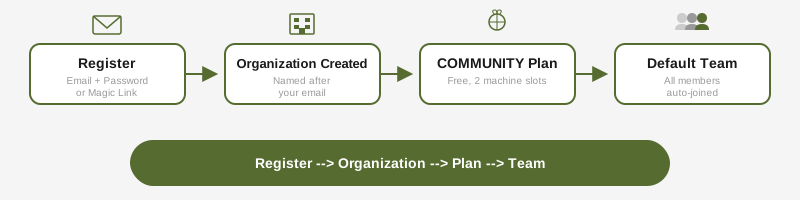
Each organization has:
- A unique name (defaults to your email)
- A subscription plan (new accounts start a 14-day free trial on Professional or Business; see Subscriptions & Plans below)
- A default team (all members join automatically)
Members & Roles
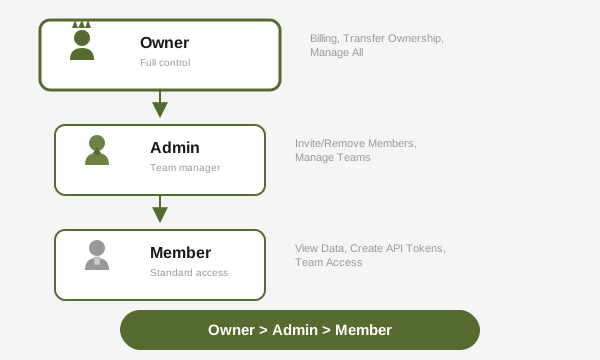
Organizations support three roles:
| Role | Capabilities |
|---|---|
| Owner | Full control: billing, transfer ownership, manage all members and teams |
| Admin | Invite and remove members, create and manage teams, revoke API tokens |
| Member | View organization data, create API tokens, access assigned teams |
Inviting members:
# From the portal: Organization > Members > Invite
# Or via API
When a member is removed, their API tokens and config storage tokens are automatically revoked.
Teams
Teams let you scope resources within an organization. Every org starts with a default team.
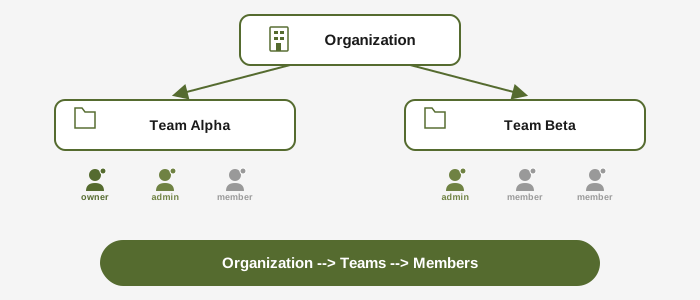
Team roles:
- Team Admin: Can add/remove team members within the team
- Member: Can access team-scoped resources
Organization owners and admins automatically have access to all teams without explicit membership.
Subscriptions & Plans
Rediacc offers four plans:
| Plan | Machines | Repo Licenses/mo | Delegation cert default / max | Features |
|---|---|---|---|---|
| COMMUNITY | 1 | 100 | 15d / 30d | Basic |
| PROFESSIONAL | 1 | 2,000+ | 60d / 120d | Permission groups, audit log, custom branding, priority support |
| BUSINESS | 1 | 5,000+ | 90d / 180d | Ceph, advanced analytics, queue priority, advanced queue |
| ENTERPRISE | Custom | 15,000+ | 120d / 365d | Dedicated account manager |
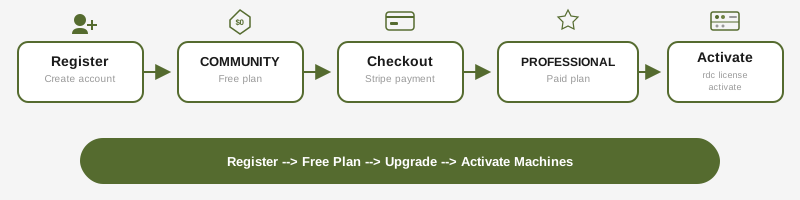
Professional and Business are self-serve and each include one machine; multi-machine Enterprise is sold through our partners. New signups start a 14-day free trial on Professional or Business, with a credit card collected at signup and the first charge placed only when the trial ends. Cancel during the trial, cancel a paid plan later, or miss a payment, and the account falls back to the free Community plan (one machine, 10 GB per repository, 100 setups a month). All plans start with a 3-day grace period. Machine slots are tracked per-team and auto-release after 5 hours of inactivity. See Subscription & Licensing for details.
Billing
Only the organization owner can manage billing:
- Create a Stripe checkout session to start a plan or upgrade
- Access the Stripe billing portal for payment method changes
- Cancel or change the plan from the billing portal; cancelling drops the account back to the free Community plan
Data Region
Your account is stored in the data region you selected at sign-up (EU, US, or Asia Pacific). This choice is permanent. The region badge in the portal shows which region your data resides in. See Data Regions for details.
Edge Channel
If your account is on the Edge channel, you will see an “Edge” badge in the portal sidebar. Edge accounts have 2X Community limits but no access to paid plans. See Release Channels for the differences between Edge and Stable.
Delegation Certificates
For on-premise and air-gapped deployments, you can manage your own delegation certificates from the customer portal at /account/delegation-certs. The page is visible to all customers regardless of plan tier; only the per-tier validity defaults differ.
Role gating
| Action | Org Owner | Org Admin | Member |
|---|---|---|---|
| List / view / download certs | ✓ | ✓ | ✓ |
| Create new cert | ✓ | ✓ | ✗ |
| Revoke cert | ✓ | ✓ | ✗ |
| Mint auto-renew token | ✓ | ✓ | ✗ |
| Process air-gapped renewal request | ✓ | ✓ | ✗ |
Members can see the list and download existing certs (useful for distributing the cert to a fleet of machines), but only owners and admins can mint or revoke them.
Single-active enforcement
A subscription may only have one active delegation cert at a time. Each on-premise install enforces per-month and per-machine quotas against its own local ledger; multiple active certs would multiply the effective quota with no possible reconciliation.
If you try to create a second cert while one is already active, the portal shows a dialog with two choices:
- Renew (recommended) - extends the existing chain. All previously issued repo licenses keep working under the renewed cert. Use this when rotating an expiring cert on the same on-premise install.
- Revoke and Create New - discards the existing chain and starts fresh from genesis. Previously issued repo licenses become unverifiable once the OLD cert’s validUntil passes. Use only when you’ve migrated to a new on-prem install with a different signing key, or when recovering from a compromised key.
If you need separate environments (production + staging + DR + multi-region), purchase one subscription per install.
Auto-renew bootstrap
To enable on-premise auto-renewal, click Get auto-renew token on the Delegation Certs page. This mints a delegation:renew-scoped api token (perpetual, no expiry) and shows you the values to paste into your on-premise .env:
UPSTREAM_URL=https://www.rediacc.com
UPSTREAM_API_KEY=rdt_<token>
The token grants only delegation cert renewal. It cannot read or modify any other resource. This is the only path to mint a delegation:renew token; the regular /portal/api-tokens flow does not include this scope.
Air-gapped renewal
If your on-premise has no outbound HTTPS access, use the offline manifest flow:
- On the on-premise admin page, click Download renewal request. The on-premise generates a signed manifest containing your local chain head.
- Transfer the manifest to the upstream (USB, encrypted email, any channel).
- On the upstream portal, click Upload renewal request and select the manifest. The upstream verifies the manifest signature, issues a fresh cert, and returns it as a downloadable
.json. - Transfer the new cert back to the on-premise and upload it via the on-premise admin page.
The upstream rejects manifests older than 7 days. See On-Premise Installation for the full step-by-step setup and License Chain & Delegation for the cryptographic design.
Rate limit
Cert creation is rate-limited to 10 attempts per rolling 24h per subscription, including failed attempts (collision spam, invalid input). If you hit the limit, the portal shows a Retry-After value indicating when you can try again.