
Installation
Installing rdc is three steps: open the install page, pick your operating system, paste the command into your terminal. The whole thing usually finishes in a minute or two.
The three steps
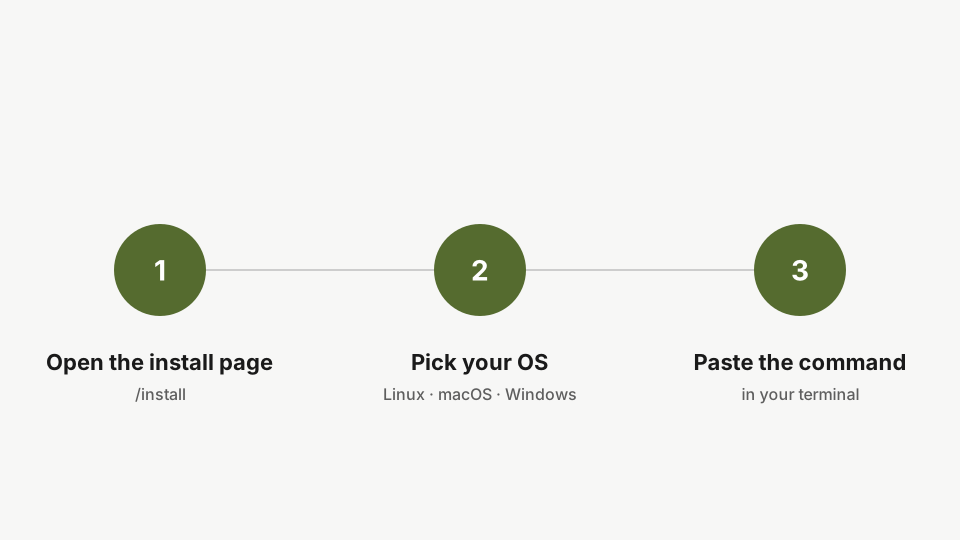
- Open the installation page.
- Pick your operating system.
- Copy the install command and paste it into your terminal.
Step 1: Install the CLI
curl -fsSL https://www.rediacc.com/install.sh | bashPaste the install command into your terminal and run it. The script verifies your platform, downloads the latest stable binary, and drops it into your home directory. No system-wide install, no sudo required. Once it finishes, the rdc binary is on your path and callable from any shell.
The installation page generates the right command for you. On Windows (PowerShell), the equivalent one-liner is:
iwr -useb https://www.rediacc.com/install.ps1 | iexThe
timeprefix is a shell trick that prints how long a command took. We use it across this series so you can see the real speed of every step. It’s optional. Drop it if you don’t want it.
Step 2: Verify the install
rdc --versionConfirm the install by running rdc with the version flag. It prints the installed version, verifying the binary is on your path.
Run rdc doctor to check Node, SSH, and the rest of rdc’s dependencies and report any gaps.
Why rdc lives on your laptop
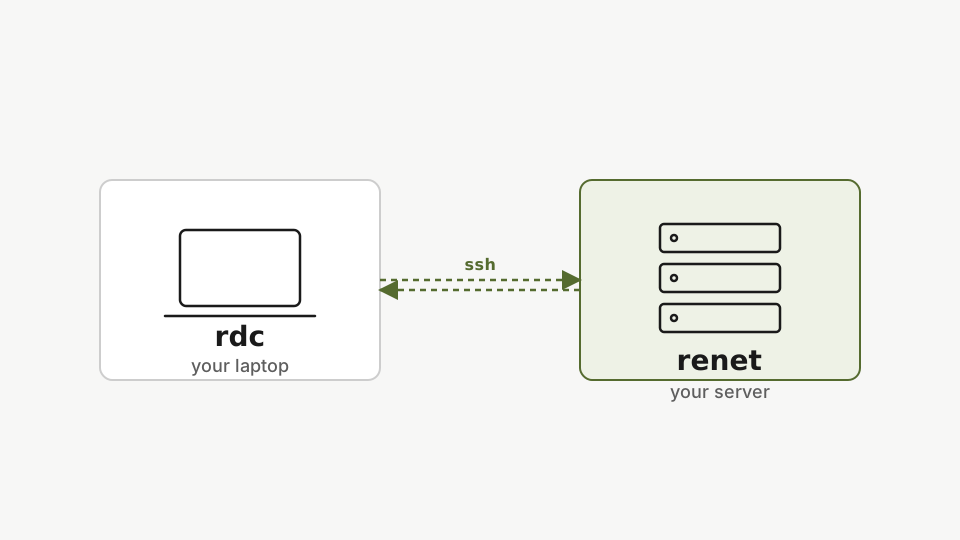
rdc is the CLI on your laptop. The server runs a separate component called renet, which rdc provisions and drives over SSH. You never need to SSH into a server manually. rdc handles it. That is the model: one tool on your machine, nothing to manage on the server directly.
We will cover renet configuration in the next two tutorials. It is more involved than the CLI install, but you only do it once per machine.
Next: SSH Key Configuration.