
Backup & Restore
Your app is live in production. Back it up. rdc copies an entire repository, the app, its database, its files and its configuration, to a second machine, and brings it back when the first one is gone.
This tutorial does not describe that. It does it, on two real machines, and reads the data back out at the end.
Three steps
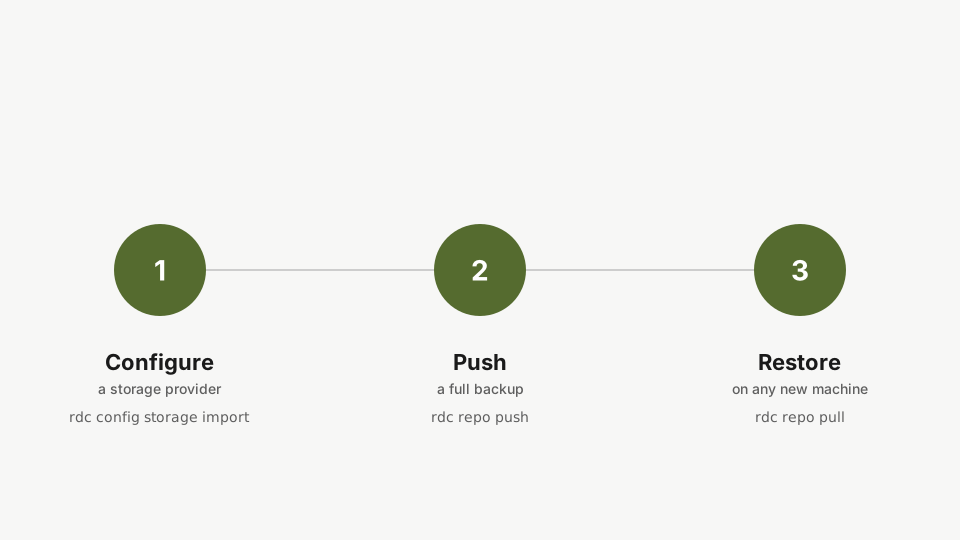
- Copy the repository to a machine you control.
- Restore that copy into a repository of its own.
- Prove it by reading your data back out.
Step 1: The data that has to survive
rdc term connect my-app --command 'cat orders.txt'Read the payload out of the live repository first. One line in one file, so the proof at the end is something you can see rather than something you have to take on trust.
Everything below is judged against this one line. Watch for it again at step 7.
Step 2: Copy the repository to a second machine
rdc repo push my-app --to machine-12Copy the repository to a second machine. The first push carries the whole encrypted image, roughly two gigabytes in thirty to forty seconds on this fleet, and every push after it sends only the blocks that changed. What lands on the target is a backup artifact rather than a second live repository.
The Delta Transfer tutorial shows the incremental half of this live.
An artifact is not a running repository, which is the whole reason step 5 exists.
Step 3: The backup machine has it
rdc repo list --machine machine-12Ask the backup machine what it is holding. The copy appears under its own name, resolved from your config. The second row carrying a raw identifier is the retained delta base, which is what makes the next push to this machine incremental.
Step 4: Disaster
rdc repo down my-app --unmountTake the primary offline: stop its services and unmount the encrypted volume. Everything from here runs against the copy on the other machine.
Step 5: Turn the artifact into a repository
rdc backup restore my-app@machine-12 --as my-app-restored --machine machine-12 --yesRestore is the verb that turns a pushed copy into a repository. It is named with --as, placed with --machine, and confirmed with --yes. Restoring under a new name overwrites nothing, which is what makes this safe to practise on a live machine.
Do this once per machine before you need it. A machine that has never round-tripped is not backed up, however healthy its pushes look, and restoring under a new name is safe on a machine that is serving traffic.
Step 6: Mount it
rdc repo up my-app-restored --no-startMount the restored repository. The containers stay down on purpose: the thing being proved here is the data, not the application.
Step 7: The data survived
rdc term connect my-app-restored --command 'cat orders.txt'The same command as step one, run against a repository that did not exist two commands ago. The line comes back byte for byte, out of a machine that was never the original.
Put the two side by side. Step 1, out of the original repository on the primary machine:
order-1042 paid 2026-08-16Step 7, out of a repository that did not exist two commands ago, on different hardware:
order-1042 paid 2026-08-16That is the tutorial. Not a report that a backup succeeded, but the line itself, read back off another machine.
Step 8: Backups you can roll back through
rdc backup snapshot my-appCopying to a machine gives you the repository as it is now. For a history you can roll back through, snapshots go to the chunk store: the first run uploads the written blocks, every run after it uploads only what changed, and any snapshot can be restored on its own. This one is typed and not run, because uploading needs an account server and a licensed repository, neither of which a recording has. On your own installation, with an account, this is the command.
On your own installation, with an account, the full sequence is:
rdc backup snapshot my-app
rdc backup manifests my-app
rdc backup restore my-app --as my-app-yesterday --at <snapshot-id> --upThe Backup & Restore guide covers snapshots, retention and verification in full.
Next: Networking & Domains.