
Production Mode
So far you’ve been running the app with renet dev up from inside the repo. That’s great for development. For production, you manage everything from your laptop with rdc. Close your laptop and the app keeps running.
Dev vs prod
The difference is simple:
renet dev upruns inside the repo. You need to be connected.rdc repo upruns from your laptop. No connection needed after that.
Three actions take you from dev to prod:
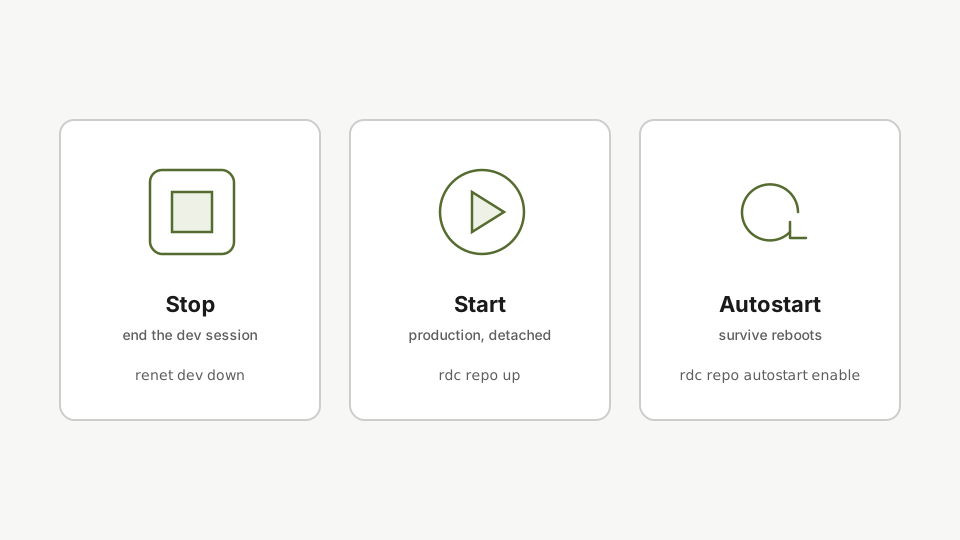
If you have a renet dev up session still running inside the repo, bring it down first with rdc vscode connect my-app followed by renet dev down. From there, the rest is driven entirely from your laptop.
Step 1: Start in production mode
rdc repo up my-appStart the app in production mode from the laptop. The deploy command calls the same up function used during development, but runs detached so the app continues after the laptop disconnects.
rdc repo up calls the same up function renet dev up did. Same Rediaccfile, different way to invoke it, except now the app keeps running after you disconnect.
Step 2: Enable autostart
rdc repo admin autostart enable my-appEnable autostart so the repo survives server reboots. Once enabled, the repo is brought back automatically whenever the server restarts.
If the server reboots, this repo comes back automatically.
Step 3: List autostart-enabled repos
rdc repo admin autostart list -m <machine-name>List the repositories with autostart enabled to confirm the app is in the boot list.
A quick check that your app is in the boot list.
Step 4: Stop from your laptop
rdc repo down my-appStop the app with a single command from the laptop. One command brings it up, one command takes it down, all driven from the terminal.
One command up, one command down. All from your laptop.
Next: Monitoring.