
Monitoring
So your app is deployed and backed up. Now keep it healthy. That’s what rdc does. rdc gives you the full picture of any server (health, containers, repos) from your laptop.
Three things you can check
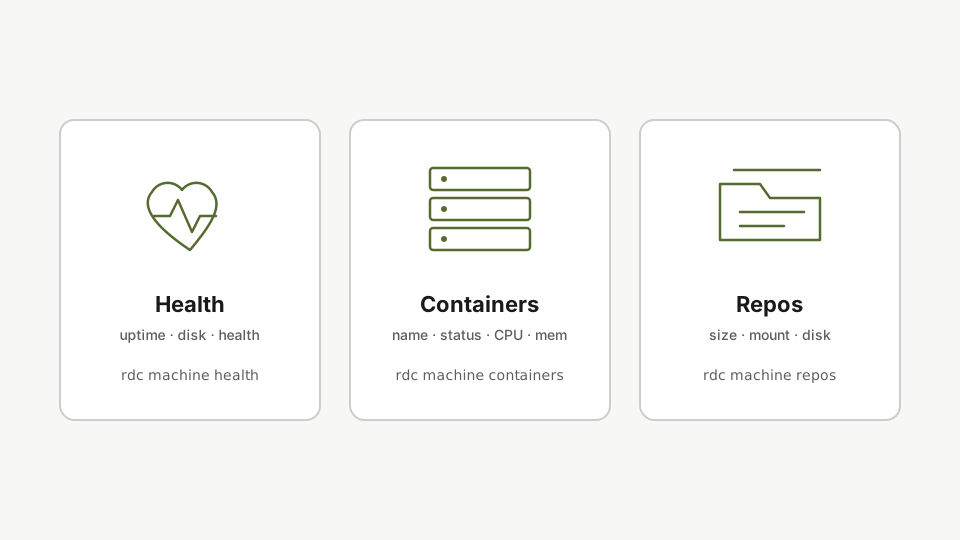
Health: system info
rdc machine status <machine-name> --systemStart with the system view. rdc machine query with the system filter shows uptime, disk usage, and storage status.
You’ll see system uptime, disk usage, and storage status. Anything wrong and you’ll spot it.
Containers
rdc machine status <machine-name> --containersThe containers view lists every running container across every repository on the machine: name, status, health, CPU, memory, and the owning repo.
You get name, status, health, CPU, and memory for each container, plus which repo owns it.
Repos
rdc machine status <machine-name> --repositoriesThe repositories view reports size, mount status, Docker daemon status, and disk usage for each isolated environment.
You see every repo: its size, mount status, Docker status, and disk usage.
Everything in one shot
rdc machine status <machine-name>Run rdc machine query with no filters to get system info, containers, and repositories in a single output.
query with no flags gives you the full picture: system info, repos, and containers. Add --system, --containers, --repositories, --services, --network, or --block-devices to narrow it to just that section.
Local sanity check
rdc doctor checks your local setup (Node, SSH key, renet, Docker), independent of any specific server:
rdc doctorRun rdc doctor for a local sanity check on your laptop. It verifies Node, SSH key, renet, and Docker, every dependency the CLI itself relies on.
The essentials are done
You can now install, configure, deploy, fork, go live, autostart, back up, and monitor: all from your terminal, all on your own servers.
The advanced track starts next: version your repositories like code.
Next: Branching: Commit & Rollback.