
SSH Key Configuration
SSH keys let you reach your servers without passwords. This is plain SSH, independent of rdc: you generate one key on your laptop, then authorize it on each server.
How it works
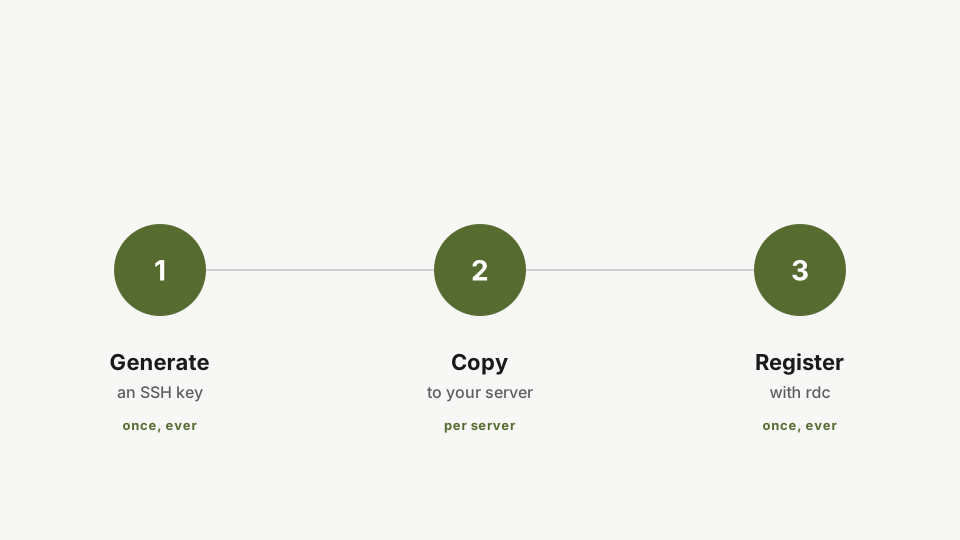
- Generate an SSH key on your laptop. Once, ever.
- Authorize it on each server with
ssh-copy-id. Repeat for every server.
Step 1: Generate a key
If you already have a key you want to use, skip ahead. Otherwise:
ssh-keygen -t ed25519 -f ~/.ssh/id_ed25519Generate a new SSH key on your laptop. Ed25519 is secure, small, and well supported. Run it once; the same key works for every server. This is plain SSH and has nothing to do with rdc.
ed25519 is the modern default: small, fast, and well-supported.
Step 2: Authorize your first server
ssh-copy-id -i ~/.ssh/id_ed25519.pub <user>@<server-ip>Authorize the key on your first server with ssh-copy-id. It appends your public key to the server's authorized_keys so future logins skip the password.
Replace <user> and <server-ip> with the SSH user and IP of your server. You’ll be prompted for your server password one last time. After this, password authentication is no longer required.
Step 3: Authorize any other servers
ssh-copy-id -i ~/.ssh/id_ed25519.pub <user>@<another-server-ip>Repeat ssh-copy-id for every other server you manage. Here we authorize the second one.
Repeat ssh-copy-id for every machine you manage. That’s all SSH needs. In the next tutorial, rdc uses this key automatically.
Next: Adding Your First Server.