
Working with Your Repo
Your app is running, but so far you’ve only seen it through docker ps. Three commands cover the daily workflow: tunnel to see the app in a browser, term to run commands inside the sandbox, sync to move files between your laptop and the repo.
The daily three
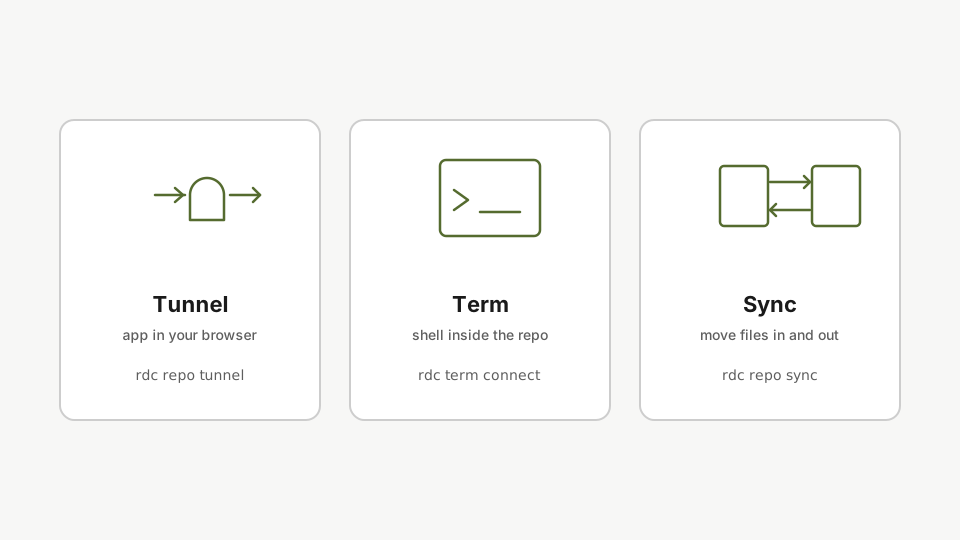
- Tunnel: open your app in a browser.
- Term: run a command inside the sandbox.
- Sync: move files in and out.
Tunnel: see your app in a browser
The app runs on the server, not your laptop. Forward a container’s port over SSH:
rdc repo tunnel my-app@<machine-name> --container appThe app runs on the server, not your laptop. The tunnel command forwards a container port over SSH so you can open it at localhost in your browser.
Open localhost in your browser. Your app is right there. Press Ctrl+C when you’re done.
Term: run commands inside the repo
Skip VS Code when you just need a shell. Drop into the repo sandbox and run anything against its Docker daemon:
rdc term connect my-app@<machine-name> --command 'docker ps'The term connect command drops you into the repo sandbox, the same isolated view as VS Code. Run any command against this repo's Docker daemon without leaving your terminal.
You see only my-app’s containers, the same view you’d see in VS Code.
Sync: move files between laptop and repo
Preview first if you’re unsure. --dry-run shows what would change without actually copying:
rdc repo sync upload my-app@<machine-name> --local /tmp/tutorial-src --dry-runBefore moving files, run sync with --dry-run. It shows exactly what would change without copying anything. Preview first whenever the source or destination is uncertain.
Once the preview looks right, run the upload for real:
rdc repo sync upload my-app@<machine-name> --local /tmp/tutorial-srcThe sync upload command moves files from your laptop into the repo over SSH using rsync delta compression. Together, tunnel, term, and sync cover the daily loop.
Tunnel, term, sync. Three commands cover the daily loop.
Next: VS Code in Your Browser.