VS Code in Your Browser
Prefer an editor over a terminal? One command serves a full VS Code from inside your repository’s sandbox, reachable from any browser: Linux, macOS, Windows, even a tablet. Nothing to install locally.
Watch the tutorial
How it works
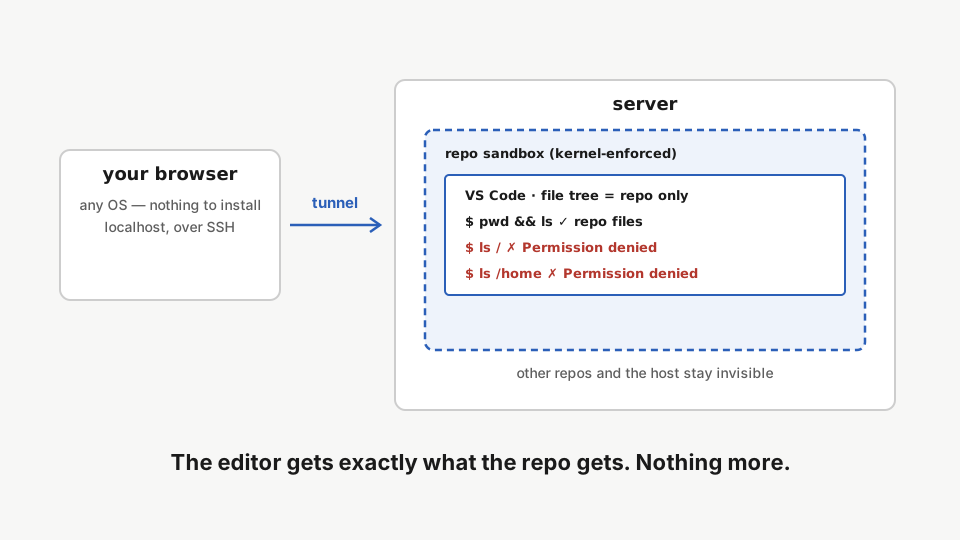
The editor does not run on your laptop. It runs inside the repo’s sandbox on the server, and your browser reaches it through an SSH tunnel. The file tree, the integrated terminal, and anything you launch from it see exactly what the repo sees, and nothing else.
Step 1: Connect
rdc vscode connect --machine <machine-name> --repository my-app --browserConnect with the --browser flag. The CLI installs the open-source editor server on the machine (once), starts it inside the repo sandbox, opens an SSH tunnel, and prints a link for your browser.
The first connect installs the open-source editor server on the machine (checksum-verified, shared read-only). After that, reconnects reuse the running server.
Manage it any time:
rdc vscode serve status -r my-app -m server-1
rdc vscode serve stop -r my-app -m server-1Step 2: Work in the browser
Create folders and files, edit, save. Everything lands directly in the repository. The integrated terminal works too, and it obeys the same sandbox as rdc term.
rdc term connect --machine <machine-name> --repository my-app --command 'pwd && ls'Open a terminal session into the same repo: the working directory and files match what the editor shows.
rdc term connect --machine <machine-name> --repository my-app --command 'cat notes/todo.md'The file created in the browser editor is a real repo file — readable from any session.
Step 3: The walls are real
rdc term connect --machine <machine-name> --repository my-app --command 'ls /'Try listing the server's root directory: permission denied. The kernel confines the session to the repo.
rdc term connect --machine <machine-name> --repository my-app --command 'ls /home'Other directories like /home are denied too — the sandbox applies to everything launched inside it.
The denials come from the kernel, not from configuration. Whatever runs inside the sandbox (editors, terminals, build tools, AI agents) ends at the repo’s walls.
Local VS Code?
rdc vscode connect -r my-app -m server-1(without--browser) opens the same repository in your installed VS Code via Remote-SSH.
Next: Forking a Repository.